
It happened to me once. I lost 6 months of hard work and it was painful.
Back in 2006, I created, together with two of my friends, an online community which started to grow quite fast and soon became well-known.
But soon after the launch, the worst happened. Our website was hacked. That was hard, quite hard, but the hardest part was that we did not have backups, so the ultimate solution was to stop working for that project.
Now, if you are thinking that having a simple backup could have saved our 6 months of hard work, you will not have seconds thoughts to get yourself an automatic backup system in place for your WordPress website.
So here it is, our guest for today: Automatic WordPress Backup.

Benefits
Automatic WordPress Backup saves your entire website, which includes the WordPress database, any theme you have installed, plugins, uploaded files and all your settings. So in the worst case scenario you will be covered, having all your files ready to be restored with minimal downtime for your website.
Once you set it up, all the backups will be automatically done by the Automatic WordPress Backup plugin. But for your peace of mind you can also trigger manual backups. In my case, I will do a manual backup after I publish this post just to be safe.
All the backups will be saved on Amazon Simple Storage Service – Amazon S3, which will give you a highly scalable, reliable, fast, inexpensive data storage infrastructure for about $30/month (this price is for about 1TB storage).
But let’s see how quick and easy you can set up the Automatic WordPress Backup plugin in just 3 steps. You will also need an Amazon S3 account, but this will also be covered in the tutorial.
Set up automatic backups
The first step in setting up the automatic backup of your WordPress website is installing the Automatic WordPress Backup plugin.
1. Automatic WordPress Backup plugin installation
In order to install the Automatic WordPress Backup plugin go to [Plugins] > [Add New] and search for the “Automatic WordPress Backup“. When this post was published the latest version was 1.0.2. So look for the version to be higher than that.
Once you will find it in the list, select the [Install] option to have the Automatic WordPress Backup plugin installed. When the installation finishes, you can check the settings of Automatic WordPress Backup plugin from the new section created on the left panel.
2. Setup your Amazon S3 account
Now that the plugin is installed, it’s time to setup an Amazon S3 account. If you already have one, just skip this and go to the Step 3.
To setup your Amazon S3 account, go to the Amazon Simple Storage Service page and select [Sign up for Amazon S3]. If you already have an Amazon account you can sign up using that account or you can create a new account by selecting [I am a new user].
When you finish setting up your Amazon S3 account, you can go ahead and make the final adjustments of the Automatic WordPress Backup plugin.
3. Automatic WordPress Backup configuration
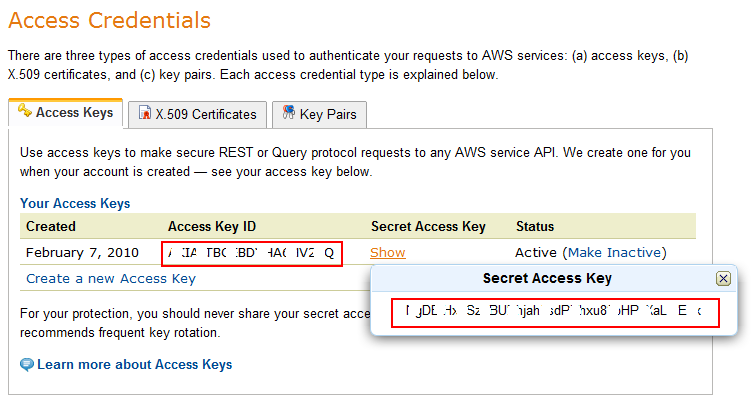
On the Amazon S3 website, from [Your Account] menu select [Security Credentials] and copy the Access Key ID and the Secret Access Key across to the Automatic WordPress Backup configuration page.
To access the Automatic WordPress Backup configuration page go to [WDC Options] and select [Automatic Backup].
Once you enter the AWS Access Key and the AWS Secret Key hit the [Save changes] button.
Now you need to create a new bucket and set the backup schedule as you wish. I called mine “eugenoprea.com-backup” and set weekly backups.
I would recommend you to select all the settings after “Backup schedule” and select [Save changes]. This way you will have your entire website backed up on an Enterprise infrastructure.
Just a quick note:
Automatic WordPress Backup plugin requires your server to have Linux installed and PHP5. Please also check the Web host compatibility.
One thing that I’m not really a fan of in the Automatic WordPress Backup is that when you install it, the plugin will automatically add to your Footer short credits with links to their website, without asking for it.
But if you want to disable this option you can do it from [WDC Options] > [General], by selecting [I’ll show my support by writing a review, donating or contributing]. I disabled the links because I don’t feel comfortable with them, but I created this review to show them my contribution.
If you find my tutorial useful, use the comments section below and let me know what do your think about the Automatic WordPress Backup plugin.
The Automatic WordPress Backup plugin was developed by Dan Coulter under commission by Web Design Company.
Photo credit: JohnSeb

Sandy, Amazon S3 is both secure and reliable, but Gmail can provide the same security and reliability.
However, the Automatic WordPress Backup plugin works only with Amazon S3 and what I like most about this plugin is that it can backup all your data, including settings, plugins, uploaded files. It backs up your blog/website exactly as it is and if you want to move or restore it, you will not have to reinstall plugins, upload images, change preferences, install themes and so on…
To answer your question more precisely, I do not really favor Amazon S3, it’s just the only way Automatic WordPress Backup works.
Thanks for explaining this, Eugen. I have a backup plugin but not this one. And I don’t have an S3 account so I’ll look into that too.
Lisa, I had doubts initially about the costs of having an Amazon S3 account, but after I looked into it, I noticed the price and decided that it is worthing.
Eugen, is there some reason that you favor Amazon S3 for storage? I have been having two automatic backups (database and theme, via two plugins) e-mailed to my g-mail account, which seems to have room for a huge amount of stuff. Is Amazon S3 more secure or is there something I’m not considering?
Wow, fast answer, Eugen! I think I’m going to switch to this, due to the ease of restoring from just one backup instead of the two I have now (which I just had to do this past week, so I am very grateful for good automatic back-up plug-ins!).
All you have to do for restoring is install WordPress, overwrite the files from the backup, restore the database and you are up and running in no time.
Wow, fast answer, Eugen! I think I’m going to switch to this, due to the ease of restoring from just one backup instead of the two I have now (which I just had to do this past week, so I am very grateful for good automatic back-up plug-ins!).
Thanks for this, Eugen. I don’t have time to find all these resources, so I can’t tell you how great it is to have your tips and advice sent to me. Really glad I subscribed.
Thanks Stacey. Good to hear that. I will do my very best to continue providing great tips and advice.
Thanks for this, Eugen. I don’t have time to find all these resources, so I can’t tell you how great it is to have your tips and advice sent to me. Really glad I subscribed.
As a tech newbie I get a lot out of your articles…first, I get great instructions and insight on tech resources. More importantly for me, you’re teaching me a new language. I become better equipped to know what to look for, where to look and what to ask for.
Many thanks Eugen for the good info.
Thanks Dawn for your kind words.
I try to be not very technical when I am explaining step-by-step instructions and I like to initially give some information about the product/service I am presenting. Just to make crystal clear the benefits of what I am reviewing.
Stay posted. More great things to come soon.
Thanks, Eugen. I like having the backup sent to my S3 instead of cluttering my email inbox.
This is also another reason why I switched to it.
I highly recommend it. Weekly automatic backups or manual backups at a push of a button.
I have seen WP backup plugins before, but I didn’t know you could get one that uses S3.
Funny how we only take backup really seriously once we’ve lost data – I’ve been in the same situation!
Iain
You are right Iain, once we lost it we are cured, but until then we rely on backups from hosting companies, which can be… inexistent.
Thanks Eugen. Your information is always so useful. I never heard of this plugin so thx. I better get mine backed up cos i cannot deal with loosing information right now.
You definitely need to do that.
I am just thinking at what will happen if my hosting company will lose a server without having a backup… What I will do, if I don’t have my own backup? A complete one.
Hi Eugen,
LOVE the new design, tagline, and about page!
Thank you so much for this helpful post! I am going to do this back up, but I was confused about the Linux server it mentions in the plugin description. Can I just ignore that?
I almost had a heart attack yesterday because I thought my entire site was deleted when I moved it to the new domain. That was enough to make me want to get it backed up to protect me in the future!
Thanks Kathleen.
You can ignore the Linux server mention, as it should definitely be offered with your hosting package.
I am with you on this. I just had a blog hacked a couple of weeks back and the backup helped me restore everything.
Quite frustrating.
Eugen
Hi Eugen, thanks for helping spread the word. It’s folks like you who make it worth the effort. Btw, if anyone has problems, feel free to ask questions on the support page at:
http://www.webdesigncompany.net/automatic-wordpress-backup/support/
PS: Final release of v2 is just around the corner. Look for it by the end of this week.
Hey Melvin,
No worries. I will always recommend remarkable products.
Thanks for offering us such a great product.
Good to know, thanks for sharing Eugen!
Any time, Red.
Eugen,
Thanks for the tutorial, it was just what I was looking for. I use godaddy for my hosting and they just went through a major hacking attack. I wasn’t affected, but thought the Amazon S3 backup was the most affordable and reliable solution.
Thanks, Eugen. I just did it. Followed your instructions to the letter. Had previousluy spent hours/days trying to find a simple way for a non-techie to do this, then came across your post. Thanks so much! I do have a question though. I did a manual backup (in addition to setting up weekly backups) and I saw an option to download. Which I did. Is this necessary? I mean, is it a good practice, or rather, wasted time and space, to download backups from Amazon’s storage? Feels like I’m in a new country where I’m having trouble picking up the language… please forgive elementary question(s). 🙂
Thanks again – Lisa – Btw, I have no idea what Linux is, but I know I have it through GoDaddy – ’cause it says so when I go there. That’s how little I know and a testament to your being able to speak so clearly to someone like me!
Joseph, It’s good to have a recent backup at hand. Anything can happen with the website.
I am happy that the tutorial worked for you.
Lisa, good to hear that my tutorial worked for you, too.
It’s not mandatory to always download backups from Amazon’s storage, but for peace of mind, you can do this. Only the latest backup.
Linux it’s an Operating System, just like Windows and Mac. Hosting companies run servers on Windows Operating Systems and Linux. So, the Automatic WordPress Backup requires you to have the website hosted on a Linux server.
Eugen
It is quite interesting this post. I am thinking to use Amazon S3 for my site, it is very usefull.
Thank you Eugen for your good advices!
Hey Eugen,
Do you still feel that this is the best free backup plugin available? It’s been a while since it has been updated and that always makes me a bit nervous. Thanks!
Andrew, I also use a couple of other plugins depending on the site I backup including Pressbackup and Vaultpress.
Sometimes AWB and Pressbackup won’t do the backups due to the software limitations of different hosting providers.
When this happens, I get a paid account with Vaultpress for that website.